![logo.svg]](https://support.keepcup.com/hubfs/logo.svg)
1. First, open the Huggg shared Excel file that has been shared with you to check for any new orders. 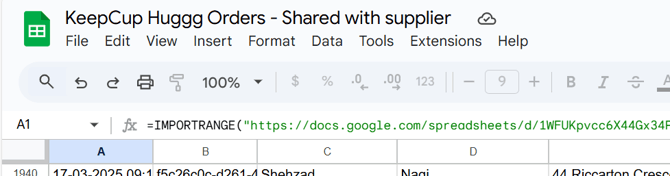
2. If there's a new order, head to CIN7 and open the sales tab and select customer.
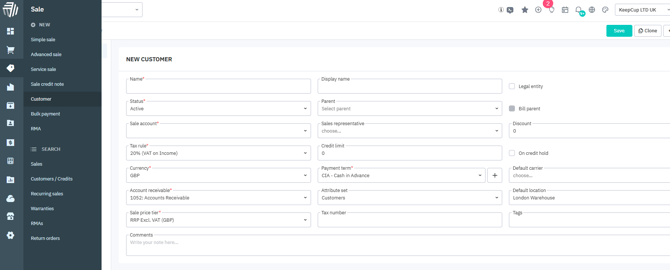
3. When you click on customer, you will then see it appear again in the top left corner. Please click on the word "customer" again.
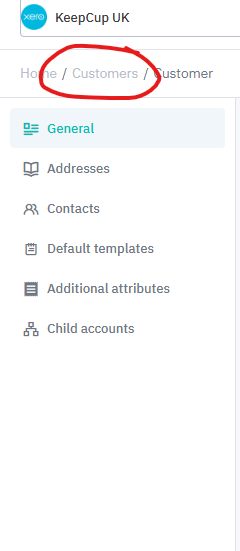
4. In the search bar search "HUGGG" and then open the HUGG customer card from the search.
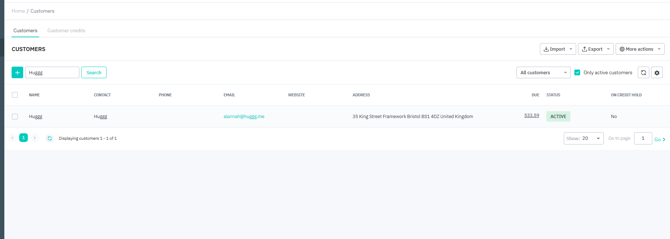
5. How to find Huggg prices for products:
-Open customer card and click on attachments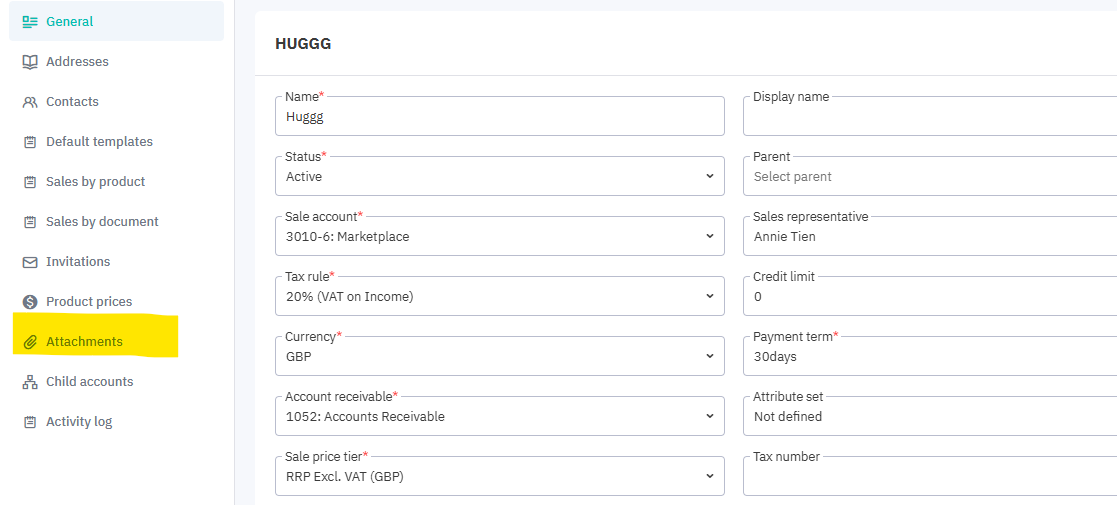
- Click on 'Huggg 2026 KeepCup Pricing.pdf'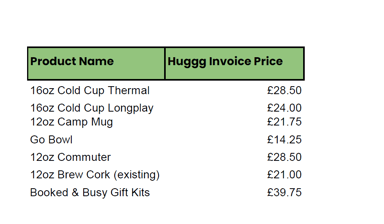
6. Start a new simple sale.
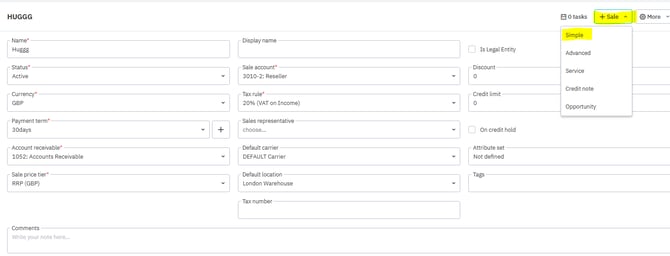
7. Open a new sales order and enter the information in the Excel sheet.
- Enter the reference number
- customers delivery details
- Enter customers name under 'Ship to Contact'
- enter the customers phone number
- tick skip quote and tax inclusive
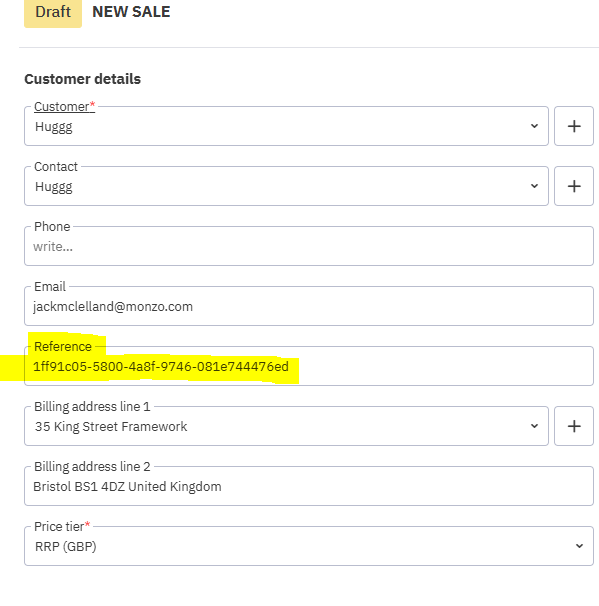
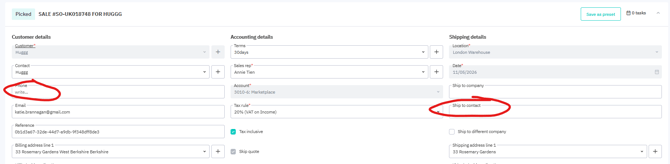
8. Once you have entered the customer details, locate the cup's SKU and enter it in the item line. Ensure that the total matches the value on the website—adjust as needed until the amounts align.
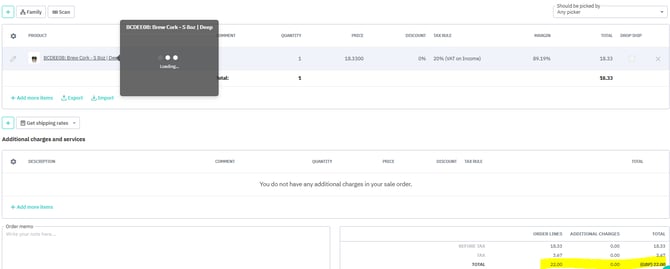
9. Huggg receives free delivery on all orders. You need to add free shipping to the additional charges and services box.

10. Once the steps above are complete, go ahead and authorise the order and invoice. Let Migle know once the orders have put through in Cin 7.
Once shipped Migle will provide the tracking number, this needs to be added to the excel sheet shared with Huggg.