![logo.svg]](https://support.keepcup.com/hubfs/logo.svg)
Step 1 - Log in to Shopify
Step 2 - Go to Orders and Create a New Order
In the left-hand menu, click Orders. Then click the Create order button in the top-right corner of the page.

Step 3 - Add the Sample Products
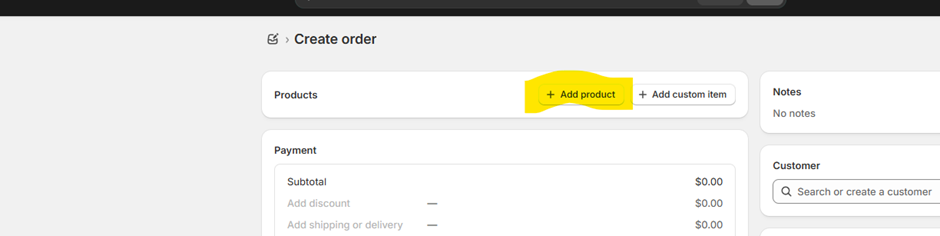
Click on the +Product and add the correct product and variant (e.g. size, colour, SKU).
If a custom price has been agreed, click the price field next to the product and enter the correct amount. To apply a discount, click Add discount under the line item and enter the percentage or dollar amount.
Step 4 - Add the Customer
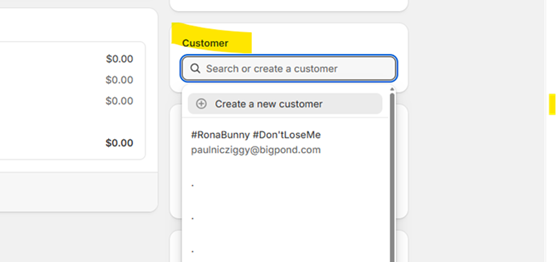
On the right-hand side of the page, find the Customer section and click Search or create a customer.
Search for the customer by name, company, or email. Select them from the results - their billing and shipping details will fill in automatically.
If the customer doesn’t exist yet, click Create a new customer and enter their details: full name, company name, email address, phone number, and delivery address. Save the record before continuing.
Step 5 - Set Shipping, and Payment Terms
In the Shipping section, select the applicable shipping method, make sure it matches the shipping available (e.g. Australia Post Standard) or enter a custom rate. If samples are being sent free of charge, enter $0.00
Step 6
Before sending the invoice/collecting payment, go through this checklist:
-
Products and quantities are correct.
-
Unit prices and discounts are accurate.
-
Subtotal, shipping, and tax amounts look right.
-
Customer name and email address are correct.
